Imagine your sales team can update a lot's availability from their phone and, within seconds, that change shows up on the plan published on your website. No calls, no emails, no touching code.
That is exactly what you are going to learn in this article.
And the best part: it is completely free.
What are you going to build?
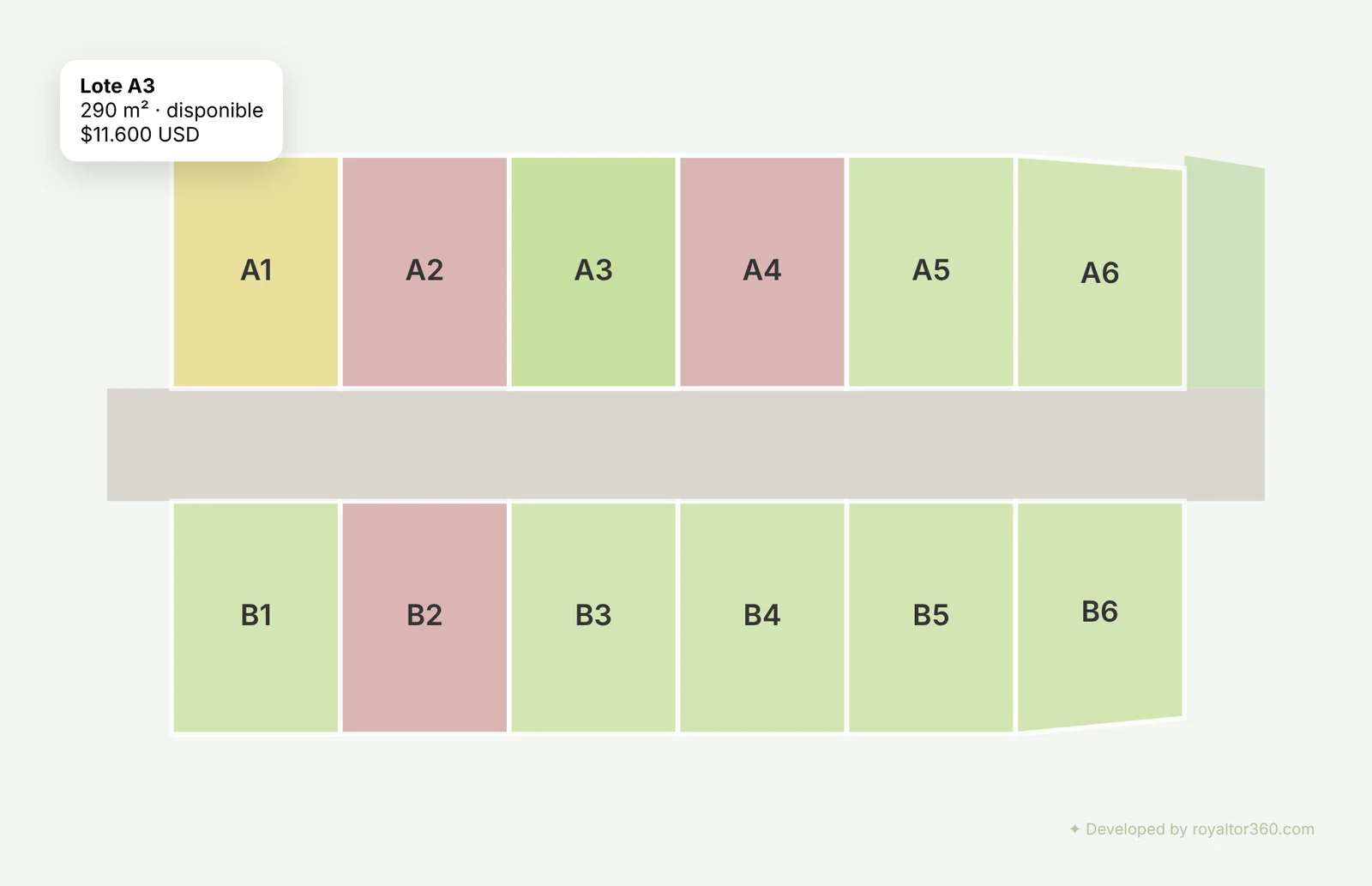
An interactive subdivision plan where:
- Each lot has a color code based on its availability: green (available), red (sold) and yellow (reserved)
- When you hover over a lot, or tap it on mobile, a tooltip shows its name, area and price
- Availability updates in real time from a Google Sheets spreadsheet
- The plan is published with its own link that you can share on WhatsApp or use on your website
The tools you will use
You only need 4 tools:
- Adobe Illustrator: to vectorize the plan (you only use it once)
- Claude: the AI that turns your plan into code
- Google Sheets: the database where you control availability
- Lovable: the platform that publishes your plan online
Does Illustrator cost money? Yes, it requires a license. But you only need it once to vectorize the plan. You can start the free trial, do the work and that's it. Alternatively, Inkscape is free and works just as well for this process.
Step 1: Vectorize the plan in Illustrator
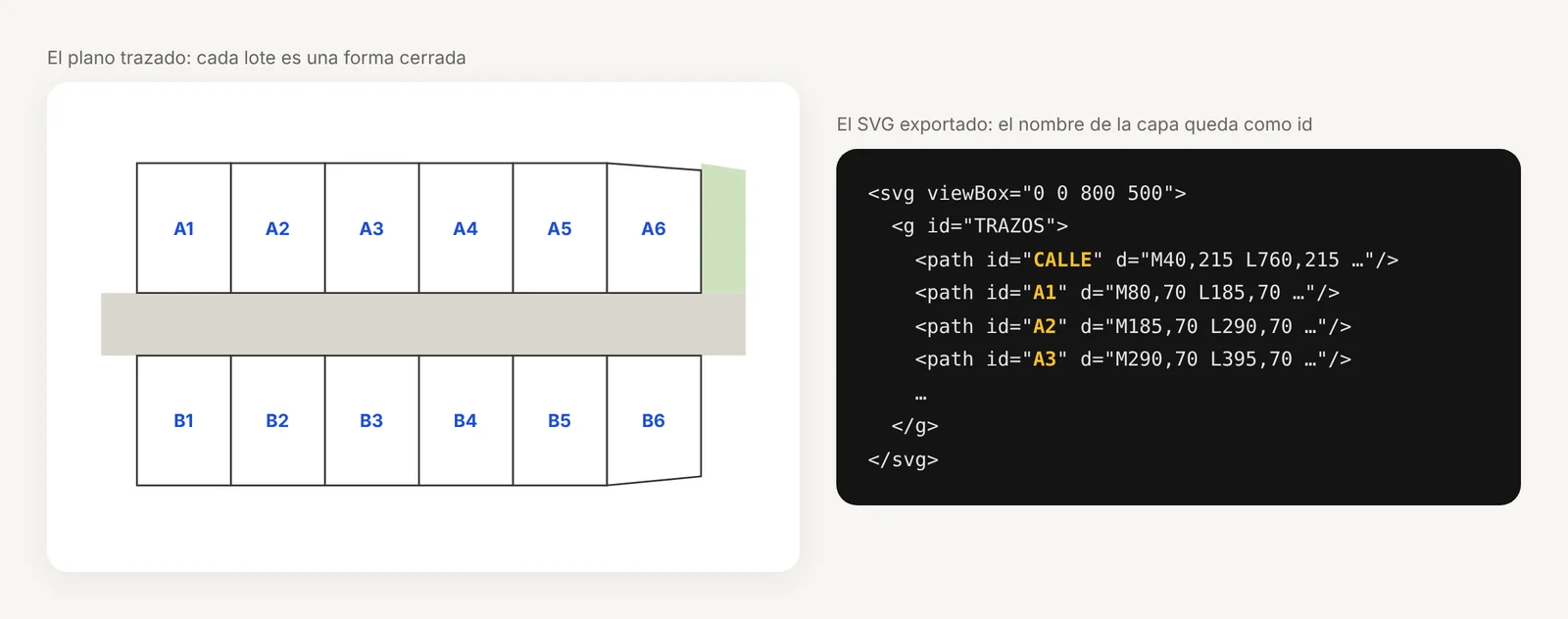
The first step is to trace each lot of your plan as a separate vector shape. This is what lets the website identify each lot and make it interactive.
How to set up Illustrator
- Open Illustrator and create a new document. The size does not matter
- Go to File → Place and find the image or PDF of your plan
- In the Layers panel, rename that layer
PLANO IMGand lock it. This keeps you from moving it by accident - Create a new layer above it and name it
TRAZOS(Spanish for "paths")
The only 4 keys you need
| Key | Tool |
|---|---|
V | Selection |
P | Pen (to trace) |
Z | Zoom |
H or Spacebar | Hand (to move around) |
How to trace each lot
With the Pen tool (P), click on each corner of the lot to create the points. When you reach the last one, click on the first point. You will see a small circle appear under the cursor, which means the shape is about to close.
⚠️ Most common mistake: leaving a shape open. An open shape has no fill and the process fails. Always check that each lot is a closed polygon.
How to name the layers
Each lot must have its own name in the Layers panel. That name becomes the ID in the code. Use simple names with no special characters:
A1,A2,A3for the lots in block AB1,B2,B3for block BCALLE(Spanish for "street") for the street or road
💡 The layer name in Illustrator = the lot ID on the website. Get it right from the start.
Export as SVG
Once you have traced all the lots:
- File → Save As → SVG
- In the export options, turn on Object IDs: Layer names. This is the most important part
- Save the file as
plano.svg
Step 2: Turn the SVG into a web component with Claude
Open claude.ai, start a new conversation, attach your SVG file and paste the following prompt:
Prompt 1: For Claude (turns the SVG into a React component)
You are an engine that converts real estate vector assets into React web interfaces with geospatial interactivity. Your job is to process SVG files of cadastral plans and produce production components ready to deploy.

INPUT: you will receive an SVG file exported from CAD or vector design software (Illustrator, AutoCAD, Inkscape) with the geometry of a land subdivision.

PHASE 1: Vector processing (silent, do not report):
Parse the SVG and identify every element by id, data-name or layer. Extract the viewBox, dimensions and coordinate system. Classify each element: sellable lot, road, common area, building. Calculate the real geometric centroid of each polygon (not the bounding box). Do not report the analysis. Go straight to Phase 2.

PHASE 2: Parameter collection:
Ask these questions in a single block, with no preamble:
1. What is the commercial name of the subdivision project?
2. What is the background color of your website in HEX? (e.g. #F3F6F0)
3. For each lot identified: initial status (disponible / vendido / reservado, keep these exact values) and area in m²
4. What is the base price per m² in USD?
5. Is there an internal or planned road? Does it need a paver texture?
6. Do vehicle access points need to be marked? Size in meters?

PHASE 3: Without asking anything else, generate the PlanoLotes.tsx component with: fixed colors (disponible #c8e0a0, vendido #d4a0a0, reservado #e8d880), LOTES_DATA as a separate, replaceable object, interactive hover and tap, a tooltip with name/area/price, and the watermark "✦ Developed by royaltor360.com" in the bottom right corner.

RESTRICTIONS: never invent geometry, use only the paths from the original SVG, deliver each downloadable file separately.
Claude will ask you 6 questions. Answer them all in a single message and within minutes it gives you the PlanoLotes.tsx file, ready to download.
The status values stay in Spanish (disponible= available,vendido= sold,reservado= reserved) because they must match the Google Sheets template and the code from the next prompts.
Step 3: Set up the Google Sheets spreadsheet
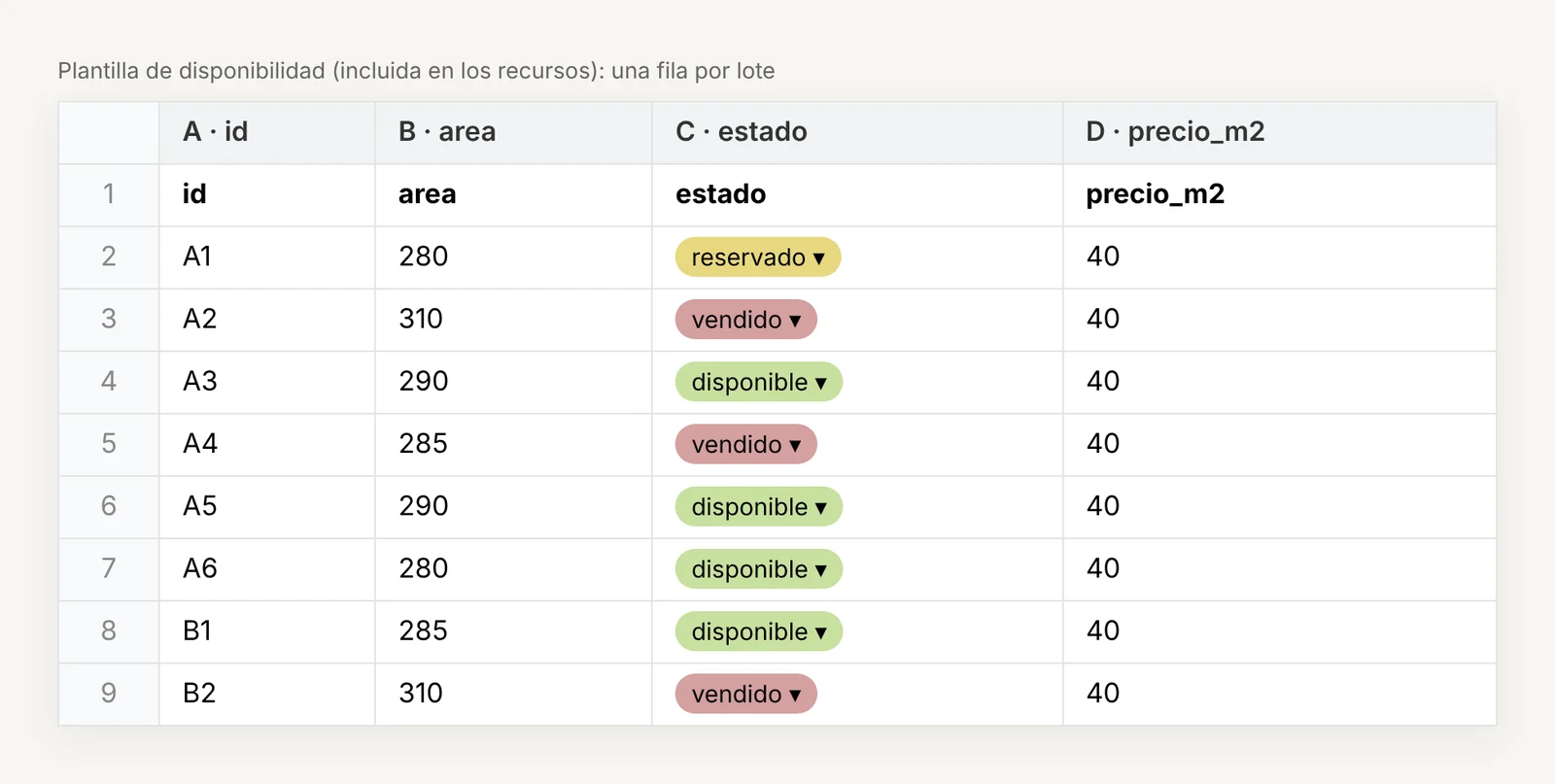
Your Google Sheet is the database that controls the availability of each lot. The structure is simple:
| id | area | estado | precio_m2 |
|---|---|---|---|
| A1 | 285 | disponible | 40 |
| A2 | 260 | vendido | 40 |
| B1 | 270 | reservado | 40 |
The template in the downloadable files is in Spanish. Keep the column names exactly as they are (estado = status, precio_m2 = price per m²): the code reads the columns by these names.
The valid values forestadoaredisponible,vendidoorreservado, always in lowercase.
Add data validation with colors
To make it easier to manage from your phone:
- Select the whole
estadocolumn - Go to Data → Data validation → Add rule
- Choose Dropdown (list of items):
disponible,vendido,reservado - Turn on the colors: green for disponible, yellow for reservado, red for vendido
That way, every time you update a status, you simply pick it from the dropdown menu.
Publish the sheet as CSV
- File → Share → Publish to web
- Select the first sheet (
Sheet1) - For the format, choose Comma-separated values (.csv)
- Click Publish
- Copy the URL. It must end in
&output=csv
Save that URL, you will need it in the next step.
Step 4: Upload the component to Lovable and publish
Go to lovable.dev, create a free account and open a new project. In the Lovable chat, paste this prompt:
Prompt 2: For Lovable (uploads the component)
Add the .tsx component file I just attached to src/components/ (keep its original filename). Display it centered on the main page over a full-width section with background color #F3F6F0. No header, no footer, just the component.
Attach the PlanoLotes.tsx file that Claude gave you. Lovable adds it automatically and within seconds you see the plan working in the preview.
Step 5: Connect to Google Sheets (real time)
This is the final step. Copy the following prompt, paste it into the Lovable chat and add your Google Sheet's CSV URL at the end:
Prompt 3: For Lovable (connects to Google Sheets)
Modify the .tsx component file I previously added to src/components/ (the lots map component, keep its current filename) to load lot data from Google Sheets instead of the static LOTES_DATA object. Follow these exact instructions:

1. Add useEffect and useRef to the React import line
2. Replace the static LOTES_DATA object with a LoteData type and a SHEETS_URL constant
3. Add inside the component: lotesData state, cargando state, prevDataRef, intervalRef
4. Add a useEffect that fetches the CSV from SHEETS_URL with cache busting (&cachebust=Date.now()), skips the header row, parses columns A=id, B=area (append " m²"), C=estado, D=precio_m2, auto-generates nombre as "Lote " + id, only updates state if data changed (compare with JSON.stringify), repeats every 15000ms, and cleans up on unmount
5. Replace all references to LOTES_DATA with lotesData
6. If SVG polygon IDs don't match Sheet IDs, normalize them automatically
7. Show "Loading availability..." while cargando is true
8. Add watermark: "✦ Developed by royaltor360.com", 11px, #4a7a2a at 40% opacity, linked to https://royaltor360.com in new tab
9. Never reset lotesData to empty between fetches. If fetch fails, keep previous data visible.

Do not change anything else in the component or rename the file.

Google Sheets CSV URL:
Lovable makes the changes automatically. Then click Publish so the changes go live.

What does the final result look like?
Once everything is connected, the flow goes like this:
- Your sales team opens Google Sheets on their phone
- They change a lot's status from
disponibletovendido - Within 15 seconds at most, the web plan shows the change
- Anyone with the link sees the updated information
⚠️ A note about Google's cache: Sometimes Google takes a moment to propagate the change. If the color does not change right away, wait a few seconds and reload the page. The system has cache busting turned on to keep this delay to a minimum.
What comes next?
What you just built is the foundation: a working interactive plan, updatable in real time, published online for free.
But if you want to take it to the next level:
- An interactive 360° tour built into the plan
- A CRM to manage the leads that come from the plan
- Forms that capture client details directly
- Email alerts every time someone asks about a lot
- A complete visualization platform for your project
All of that is what we do at Royaltor360: your subdivision's interactive master plan connected to a CRM. If you also want to understand what a team that sells lots needs, read what a CRM for real estate companies that sell lots should have (in Spanish).
Process summary
| Step | Tool | Time |
|---|---|---|
| 1. Vectorize the plan | Adobe Illustrator | 30 to 60 min |
| 2. Generate the component | Claude | 5 to 10 min |
| 3. Set up Google Sheets | Google Sheets | 5 min |
| 4. Upload to Lovable | Lovable | 5 min |
| 5. Connect to Sheets | Lovable | 2 min |
| Total | ~1.5 hours |
Did you find this article useful? Share it with someone who has a real estate project and is still using static PDFs to show lot availability.