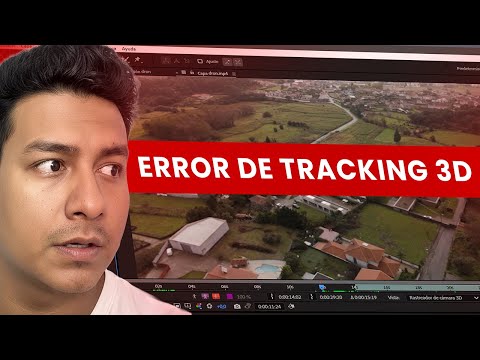
The video runs 10 minutes. Below is the same process written out step by step, so you can follow along with After Effects open without pausing every few seconds.
What you'll achieve
- Follow the movement of the land in a drone shot with Mocha.
- Draw the border of the plot and animate it so it draws itself.
- Fill the plot with a color that fades in and out.
- Place a text (for example the area) stuck to the ground with the 3D Camera Tracker.
What you need
- Adobe After Effects with Mocha AE (included; open it from Animation > Track in Boris FX Mocha).
- A drone shot where the whole plot is visible for the entire scene.
- Adobe Media Encoder to export (optional, recommended).
Step by step
1. Duplicate the footage and open Mocha
Import the shot into a composition and duplicate it with Ctrl + D (or Edit > Duplicate).
Select the copy and go to Animation > Track in Boris FX Mocha. The Mocha icon appears in Effect Controls: click it to open the Mocha window.
2. Draw the corners of the plot
Inside Mocha use the zoom tool (drag up to zoom in) and the hand tool to frame the image.
With the pen, place a point on each corner of the plot. A four-sided plot needs four points; if it has three sides or isn't rectangular, add as many as it needs. Right-click to close the shape.
To fine-tune the corners, click the small blue square on each vertex and drag it outward.

3. Track and correct
Click the track forward button (on the right side of the panel). Mocha follows the camera movement using the shape you drew.
Scrub through the timeline. If at some point the shape slides off the plot, use the tool next to the hand to move the points back into place. Repeat until the end of the shot.
Save and close Mocha.
Tip: Don't worry if the shape slides while tracking: you fix it by hand on the frames where it fails.
4. Create the mask in After Effects
Back in After Effects, in the Mocha effect options find Matte > Tracking Data and click Create AE Mask. This creates a mask that follows the same camera movement.
Hide the layer below (the original footage) to check that the cutout looks right.
5. Draw the animated border
Apply Effect > Generate > Stroke to the layer with the mask. Adjust the brush size and color (the video uses a size of 3).
To make the border draw itself, set End to 0%, add a keyframe, move forward one second and raise it to 100%.
Move those keyframes one second later so the drone flies for a moment before the border starts drawing.
Select the keyframes and apply Keyframe Assistant > Easy Ease (F9) so the movement is smooth.

6. Fill the plot with color
Apply a fill (Effect > Generate > Fill) to the footage and choose the plot's mask so the color stays inside the border.
Set Opacity to 0% where the stroke starts drawing and raise it (to 20% in the video) when the stroke finishes. A few seconds later bring it back to 0%: the color fades in and out.
You can copy and paste those opacity keyframes so the color shows up again later in the shot.
7. Add the area with the 3D Camera Tracker
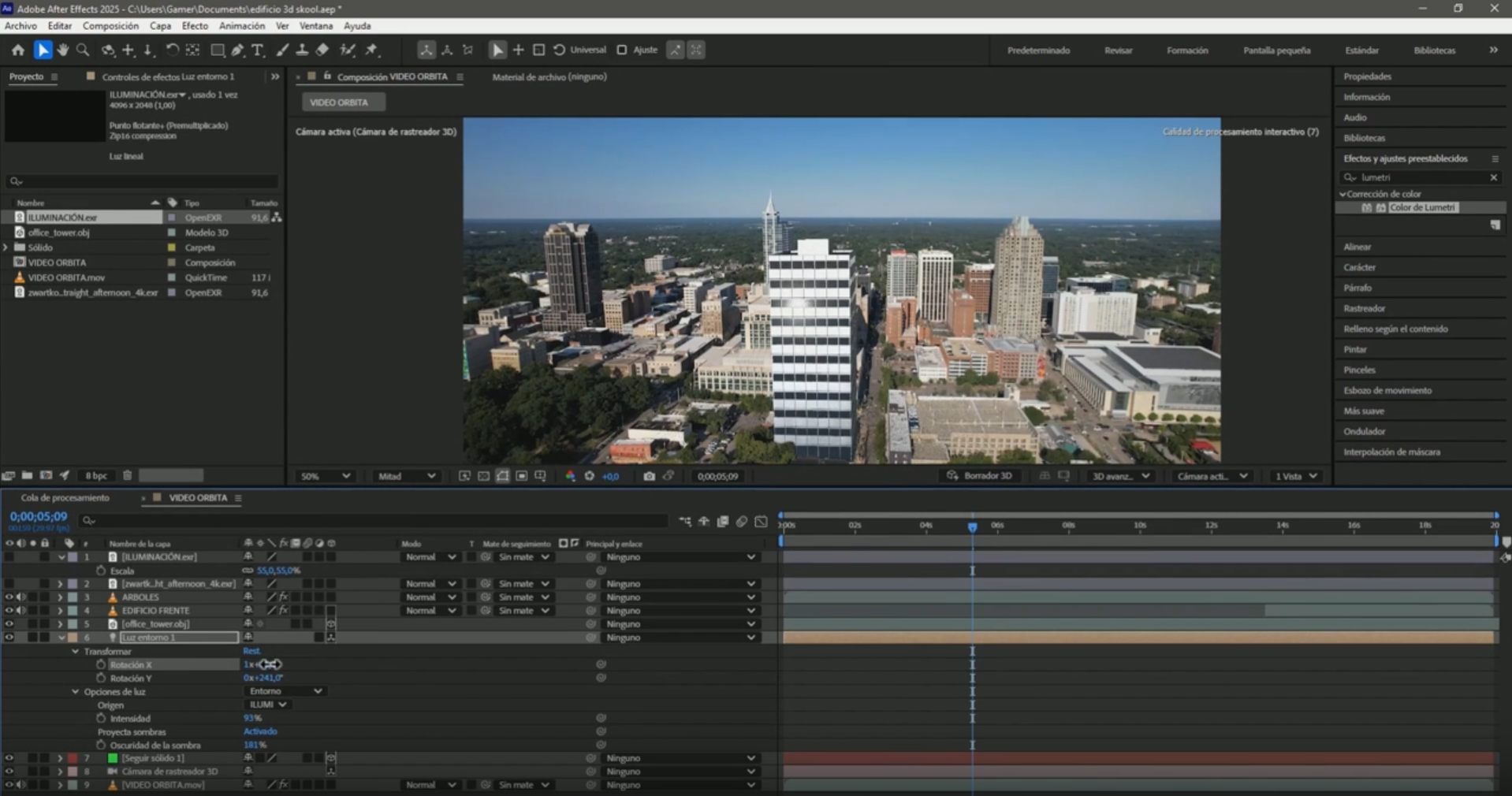
Select the footage and apply Track Camera. When it finishes you'll see track points all over the image.
Pick 3 to 5 points on the plot, right-click > Create Text and Camera.
Adjust the size and position of the text and type the plot's area. The text stays anchored and moves exactly like the drone shot.

Tip: Move the text with the gizmo arrows, don't drag it freely: if you drag it, it stops being anchored properly.
8. Export
Save with Ctrl + S. With the timeline selected press Ctrl + M (Composition > Add to Render Queue), then choose a folder and a file name.
Exporting from Adobe Media Encoder is recommended: in the video's example the final file is about 16 MB.
Common mistakes
The shape slides off the plot in Mocha
Pause, fix the points on that frame and keep tracking from there.
The text doesn't stick to the ground
Choose track points that sit on the plot (not on trees or tall houses) and move the text only with the arrows.
Frequently asked questions
Does Mocha come with After Effects?
Yes. Mocha AE ships with After Effects and opens from Animation > Track in Boris FX Mocha.
Does it work with any drone shot?
It works best when the whole plot is visible for the entire scene and the camera moves smoothly.
Can I show the price instead of the area?
Yes. The text you create with the 3D Camera Tracker can be the area, the price or any detail about the lot.
More After Effects tutorials for real estate
- 3D Camera Tracker errors in After Effects: fixes
- Animate the outline of a plot of land in After Effects
- Animate measurements of several plots at once in After Effects
- Mark the route of a road in After Effects
- How to build an interactive real estate site plan in real time
All the videos are on the YouTube channel @cristhianitsme.