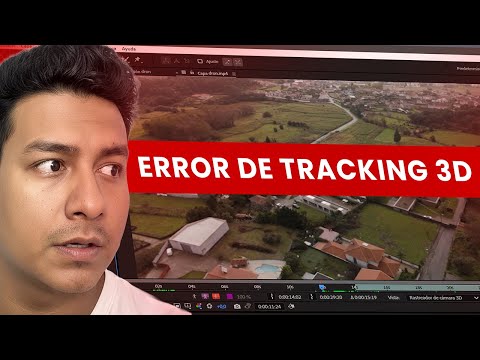
The video runs 12 minutes. Below is the same process written out step by step, so you can follow along with After Effects open without pausing every few seconds.
What you'll achieve
- Anchor a working plane to the road with the 3D Camera Tracker.
- Draw the route with the pen following its curves.
- Animate the line so it draws itself and then trims away.
- Turn it into a moving dashed line and add the road name.
What you need
- Adobe After Effects.
- A drone shot where the road is visible from one end to the other.
Step by step
1. Track the shot
Apply Track Camera. Under Advanced check Detailed Analysis: it takes longer but gives better results.
If the track points look small, increase Target Size to see them better.

2. Create a solid on the road
Select several points at one end of the road and, holding Shift, others at the opposite end. That way the selection covers the whole road.
Right-click > Create Solid and Camera. Position the solid so the start and end of the street line up with the composition. Always move it with the gizmo arrows.
Right-click > Precompose and name it, for example, "street".
3. Draw the route inside the precomp
Open the precomp and, with the Pen tool (G), draw a path: first point at the bottom, second at the top. Give it a stroke width of about 15 and a bright color so you can see it.
Split the viewer so you get a second, locked viewer. On the left keep the main composition so you can see where the line falls on the road.
Drag each end of the line to where the road starts and ends.
To follow the curves, add points in the middle of the line with the pen, move them onto the road and Alt + click each point to turn it into a curve.

4. Animate the line
On the shape layer, go to Contents > Add > Trim Paths, set End to 0% around second 2, add a keyframe and one second later set it to 100%: the road draws itself.
Turn on the layer's Motion Blur so the tip of the line looks more natural.
To make it disappear afterwards, animate Start from 0% to 100%. If it lasts too long, move the closing keyframes closer. Select everything and press F9.
Change the color (a light blue that's almost white works well) and add the Glow effect.
5. Make it dashed and moving (optional)
Under Contents > Stroke 1 > Dashes add dashes and adjust their size.
Animate Offset: 0 right before the line draws and a negative value (−300 in the video) at the end. The dashes move forward like a line of ants. Depending on how you drew the path, the direction may need a positive or negative value: check it.

6. Add the road name
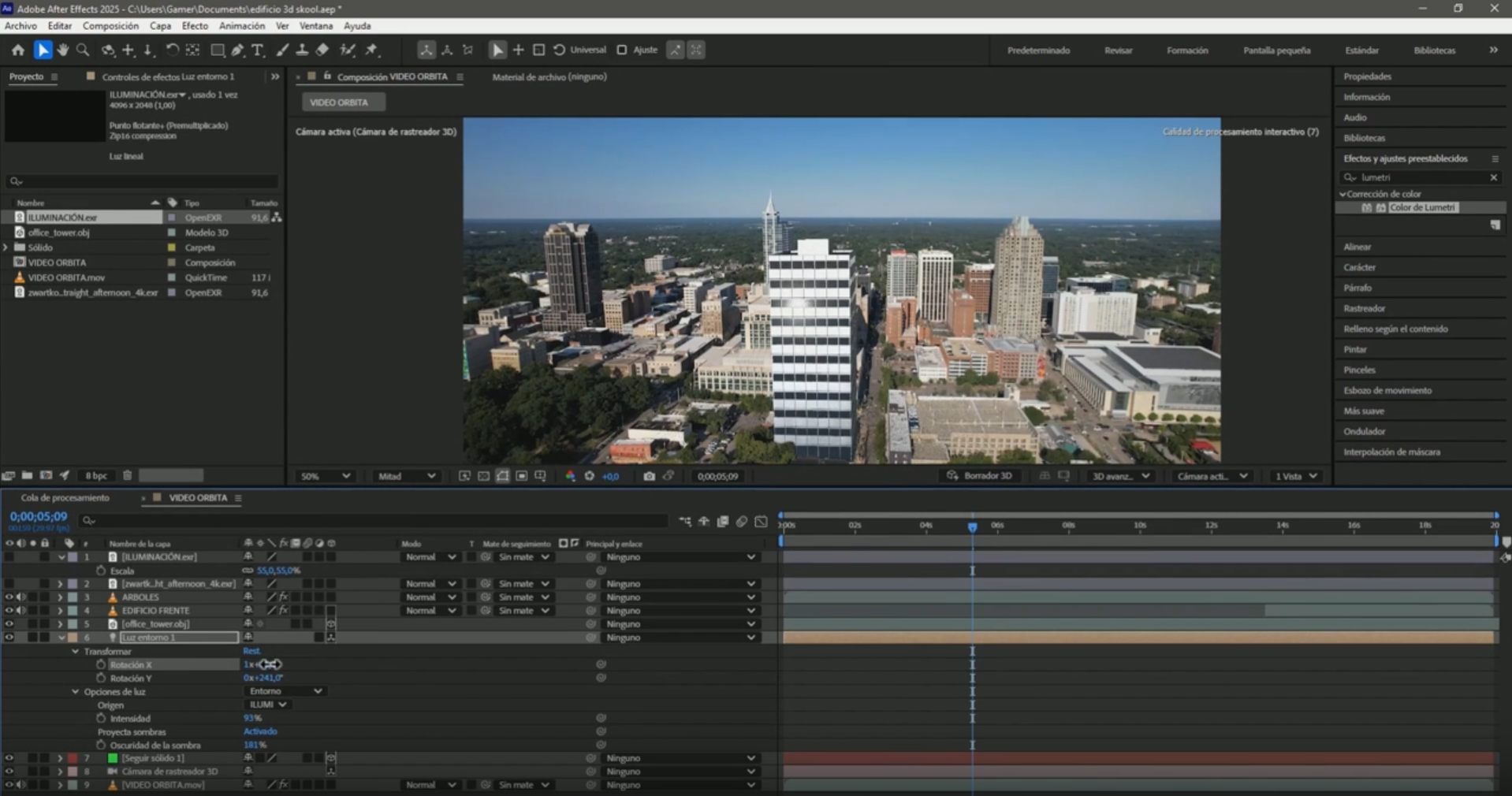
Select the tracked footage, lower Target Size (about 300), pick points near the road and right-click > Create Text. Type the name, for example "Panamericana".
If the line cuts through the text, the 3D text ended up below the ground: raise it a little.
Add Glow and, if needed, switch the renderer from Advanced 3D to Classic 3D.
Common mistakes
The line doesn't match the road
Use the split viewer to move the points inside the precomp while you watch the result in the main composition.
The dashes move backward
Flip the sign of the Offset value.
Frequently asked questions
Do I need plugins?
No. Everything is done with built-in After Effects tools: 3D Camera Tracker, Pen tool, Trim Paths and Glow.
Can I use it to mark the route from the city to the project?
Yes, as long as the shot shows the road. For long routes you can also combine it with Google Earth Studio.
More After Effects tutorials for real estate
- 3D Camera Tracker errors in After Effects: fixes
- Animate measurements and text on a plot of land in After Effects
- Animate the outline of a plot of land in After Effects
- Animate measurements of several plots at once in After Effects
- How to build an interactive real estate site plan in real time
All the videos are on the YouTube channel @cristhianitsme.