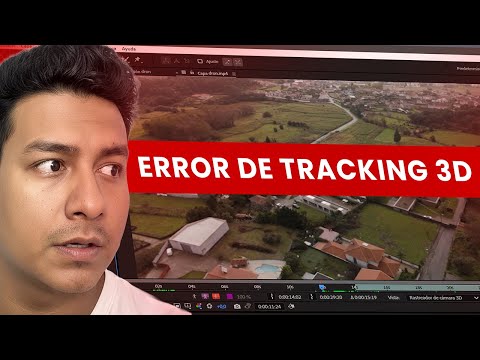
The video runs 11 minutes. Below is the same process written out step by step, so you can follow along with After Effects open without pausing every few seconds.
What you'll achieve
- Track an orbiting drone shot with the 3D Camera Tracker.
- Outline three plots with rectangles and the pen.
- Put each plot in its own precomp so you can work fast.
- Animate the area or price of each lot in sync with the shot.
What you need
- Adobe After Effects.
- An orbiting drone shot where the lots are visible.
- A reference for the measurements: architectural plan, survey or a sketch.
Step by step
1. Track the shot
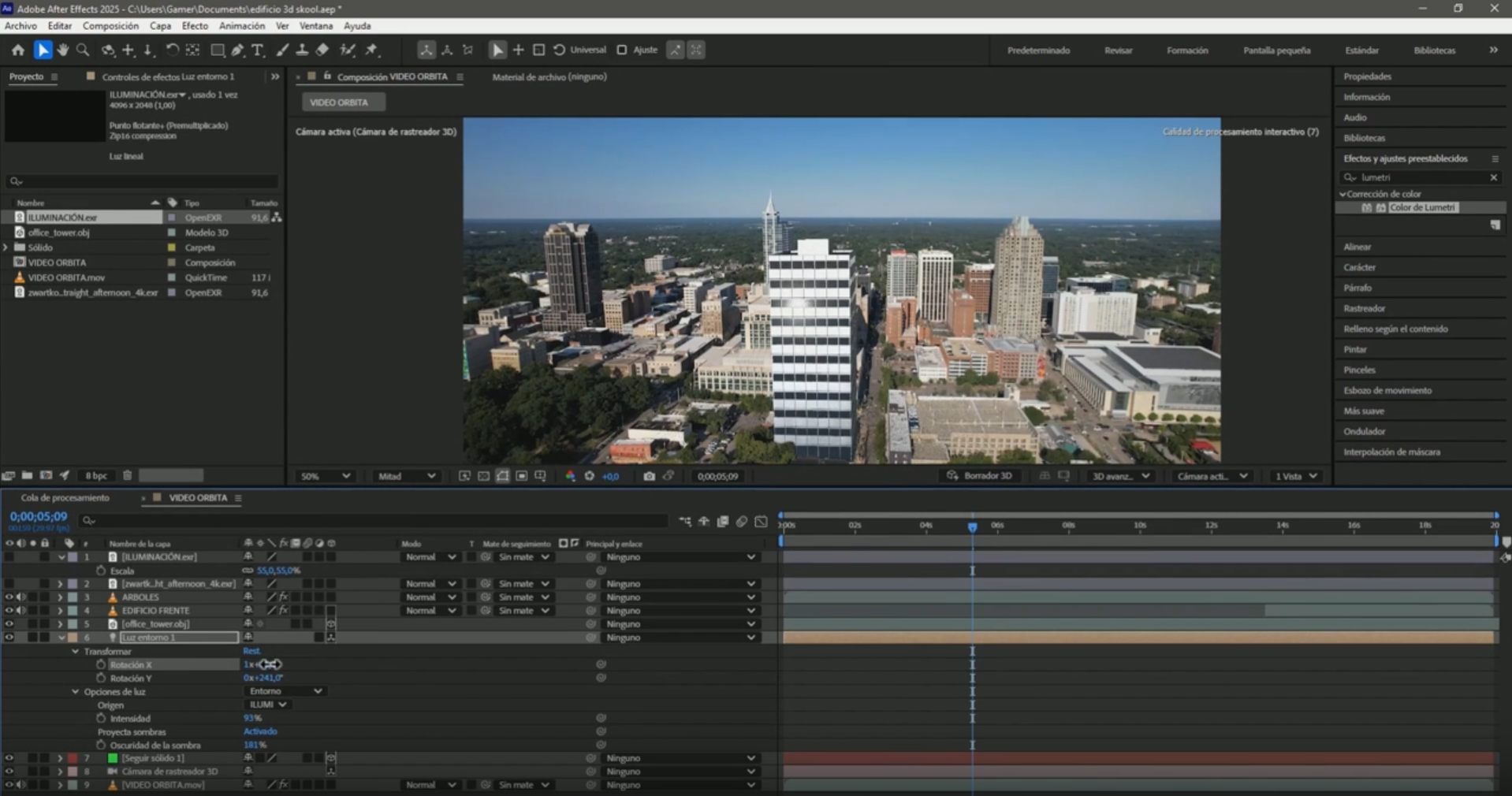
Apply Track Camera to the drone shot and wait for the analysis. For orbit shots it helps to turn on Detailed Analysis in the Advanced options.

2. Locate the lots with your reference
Keep the plan or survey at hand so you know where each lot starts and ends and which measurement belongs to it.
Select track points on the first plot and create a solid and camera (Create Solid and Camera): it will be the working plane for that lot.
3. Outline each plot in a precomp
Precompose each lot's solid. Inside the precomp draw the outline with the Rectangle tool, or with the pen if the lot is irregular.
Repeat with the second and third plots. Having each lot in its own precomp lets you change one without touching the others.

4. Animate the measurements
Inside each precomp animate the stroke (for example with Trim Paths) and add the text with the measurement or the price.
Stagger the animations so each lot appears at its moment while the drone circles.

5. Check the sync
Play the whole shot and check that the lines and texts stay on the lots for the entire orbit.
Frequently asked questions
Can I use it to show the price of each lot?
Yes. The same process works for the price or any detail you want to show on each plot.
Why use precomps?
Because each lot stays separate: you can adjust or animate one without moving the others, and the project stays organized.
More After Effects tutorials for real estate
- 3D Camera Tracker errors in After Effects: fixes
- Animate measurements and text on a plot of land in After Effects
- Animate the outline of a plot of land in After Effects
- Mark the route of a road in After Effects
- How to build an interactive real estate site plan in real time
All the videos are on the YouTube channel @cristhianitsme.