
The video runs 14 minutes. Below is the same process written out step by step, so you can follow along with After Effects open without pausing every few seconds.
What you'll achieve
- Select the track points again when they disappear or stop responding.
- Get rid of the "layer size must match composition size" error and still resize the shot.
- Fix the tripod pan "no depth" warning so your text stops drifting off the ground.
- Understand the difference between the Layer panel and the Composition panel so the panel error doesn't come back.
What you need
- Adobe After Effects with a shot (for example a drone shot) that already has the 3D Camera Tracker applied, or that you are about to track.
Step by step
1. The track points disappear or can't be selected
Symptom: the scene is already tracked and has text or solids attached, but when you select the footage or the camera the track points don't show up. If you check Render Track Points you can see them, but you can't select them. The text layers can't be rotated with their handles either.
Cause: the Ctrl + Shift + H shortcut was pressed by accident. It hides the layer controls in the Composition panel.
Fix: select the 3D Camera Tracker effect in Effect Controls and press Ctrl + Shift + H again (Cmd + Shift + H on Mac). The points come back and you can select them. If you had checked Render Track Points, uncheck it.
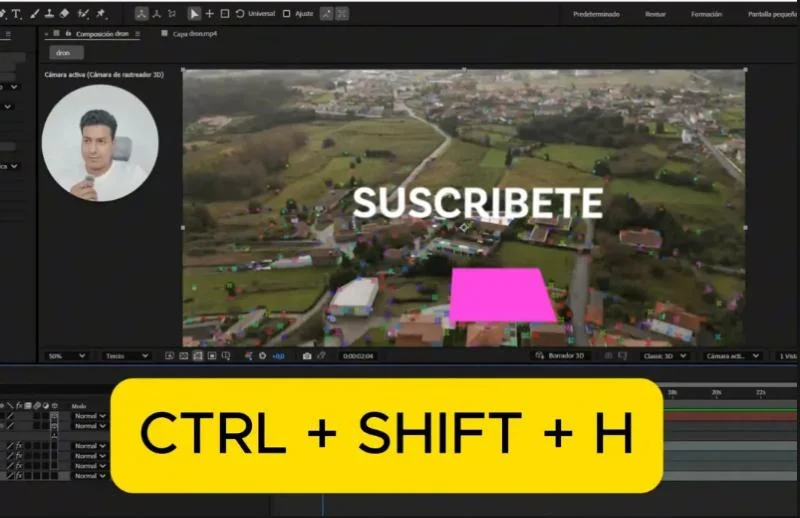
Tip: Don't delete the effect to track again: the problem isn't the track, and after waiting for the analysis the points still won't show up.
2. Error "Layer size must match composition size"
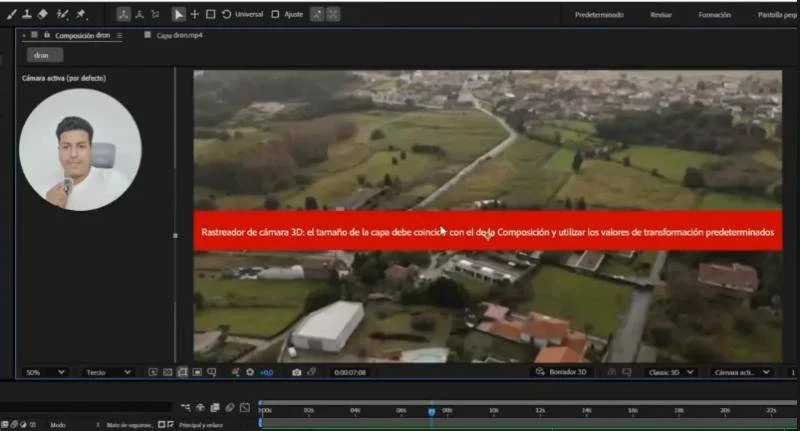
Full message in the English interface: 3D Camera Tracker: Layer size must match composition size and use default transform values. It can appear at the end of the analysis, after you've waited for the whole track.
Cause: the footage you are tracking isn't the same size as the composition (for example a 1920 × 1080 composition and footage of a different size), or you changed its Transform values: Scale at 106%, a 2° rotation, and so on.
Fix: on the footage layer open Transform and click Reset. With the default values the error goes away and you can create text or solids as usual. If the footage size doesn't match, set the composition to the footage size.
If you need the shot bigger or framed differently: select the footage with the tracker and the layers you created (text, solids, camera), right-click > Precompose. Scale the precomp, not the footage: the track stays intact.
3. "No depth" warning with a tripod pan
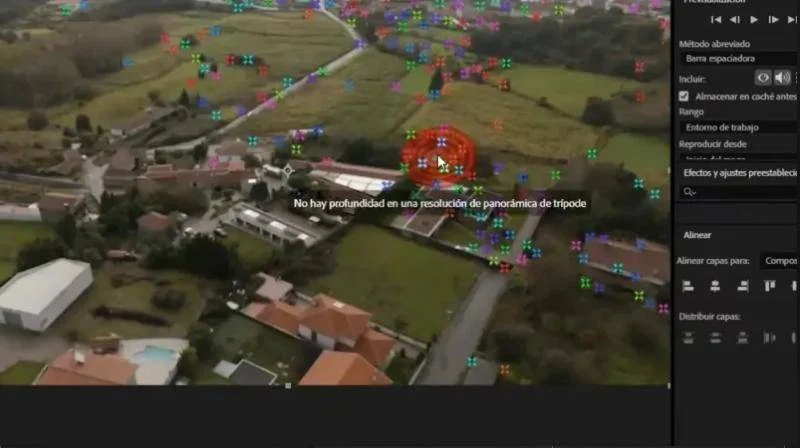
Symptom: the track finishes, but a warning says there is no depth in a tripod pan solve. The text looks aligned at the start, but in long shots or shots where the perspective changes it drifts off the ground.
Cause: under Advanced, Solve Method is set to Detect Automatically and After Effects read the shot as if the camera only rotated in place (on a tripod), so it doesn't calculate depth.
Fix: select the tracked footage, open Advanced in the effect and set Solve Method by hand. Try Mostly Flat Scene first; if that doesn't work, use Typical. The warning goes away and the tracker measures depth again.
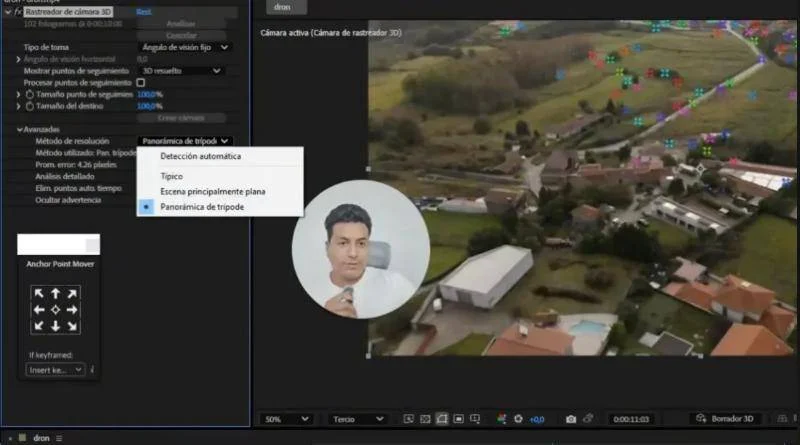
Tip: Before tracking again or switching to another shot, check the Solve Method: changing it is almost always enough.
4. Error "use only in the Composition panel"
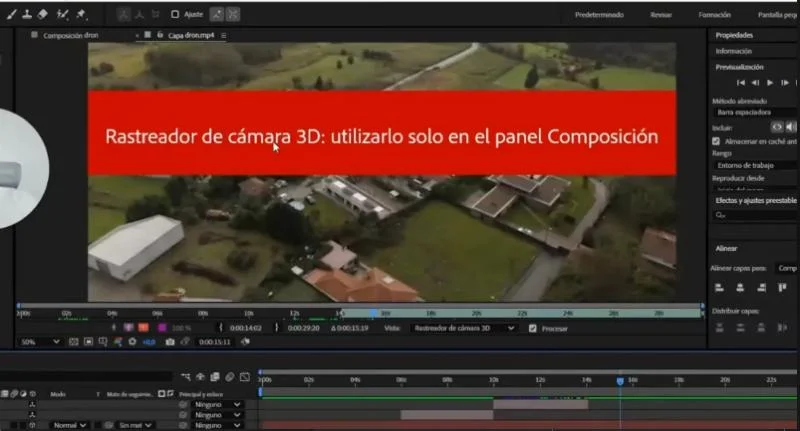
Symptom: when you apply the tracker a red banner says the 3D Camera Tracker can only be used in the Composition panel.
Cause: you double-clicked the footage in the timeline. That opens the Layer panel, a new tab where you see the footage on its own, and the tracker doesn't work there.
Fix: close the Layer panel or go back to your composition's tab, select the footage in the timeline and apply the tracker from there.
Tip: A project has compositions and each composition has layers (footage, text, logo). The 3D Camera Tracker is applied to a layer, but always while you look at it inside the composition.
Common mistakes
Deleting the effect and tracking again
It doesn't help with error 1: the points stay hidden until you press Ctrl + Shift + H.
Scaling the footage after tracking it
It brings back error 2. Scale the precomp, never the layer that has the tracker.
Ignoring the tripod pan warning
The track looks fine at first, but the elements drift later on. Change the Solve Method.
Frequently asked questions
Why can't I select the 3D Camera Tracker points?
Because the layer controls are hidden. Select the effect and press Ctrl + Shift + H (Cmd + Shift + H on Mac).
How do I zoom into a tracked shot without getting the layer size error?
Leave the footage with the default Transform values, precompose the footage with its text and camera, and scale the precomp.
What does "no depth" mean in the 3D Camera Tracker?
It means After Effects solved the shot as a tripod pan. Under Advanced, change Solve Method to Mostly Flat Scene or Typical.
Which Solve Method should I use for drone shots?
If Detect Automatically gives you a tripod pan, try Mostly Flat Scene and, if that doesn't work, Typical.
Why does it say the tracker can only be used in the Composition panel?
Because you are in the Layer panel (it opens when you double-click the footage). Go back to the composition and apply the tracker from there.
More After Effects tutorials for real estate
- Animate measurements and text on a plot of land in After Effects
- Animate measurements of several plots at once in After Effects
- Mark the route of a road in After Effects
- Animate the outline of a plot of land in After Effects
- How to build an interactive real estate site plan in real time
All the videos are on the YouTube channel @cristhianitsme.


