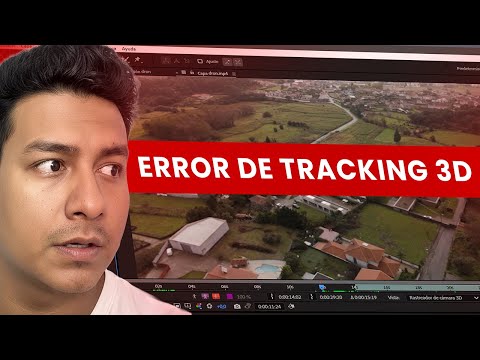
The video runs 17 minutes. Below is the same process written out step by step, so you can follow along with After Effects open without pausing every few seconds.
What you'll achieve
- Trim the footage to the section you'll use so you work faster.
- Isolate the plot with a mask tracked in Mocha.
- Animate the outline with dashes that rotate and glow.
- Make the plot rise and come back down.
- Place a text with a shadow anchored to the plot.
What you need
- Adobe After Effects with Mocha AE.
- A drone shot of the plot.
Step by step
1. Use only the section you need
Before tracking, decide how many seconds you'll use. Tracking a full minute when you only need 10 seconds wastes time and resources.
Go to the start of the section and press Ctrl + Shift + D to split the layer; do the same at the end. Set the work area to that section (holding Shift snaps it to the cut) and right-click > Trim Comp to Work Area. Delete the leftover layers.
Tip: You can work with the preview at Half or Third resolution so the program runs smoothly. Before opening Mocha, set it back to Full so it doesn't ask you to change it.
2. Draw the outline in Mocha
Select the layer and open Animation > Track in Boris FX Mocha.
Check that the plot is visible for the whole scene. Go to the frame right before the plot starts leaving the frame and draw the outline there with the pen, clicking on each edge. Right-click to close it.
For curved sides, collapse the blue handle and move the red one until the line follows the curve.

3. Track in both directions
From the frame where you drew, track forward first. If an edge slides, pause with the spacebar and adjust it; that creates a keyframe and you keep tracking from there.
Go back to the first keyframe and track backward to second zero, correcting the same way.
Avoid filling the mask with keyframes: with too many, the edges move in jumps.
Save and close Mocha, and create the mask from Matte. The plot is now isolated.
4. Darken the background
Duplicate the layer. On the lower one, delete the Mocha mask so you have the full footage.
Create a black solid (right-click > New > Solid) between the two layers. Press T and set its opacity to 0%, add a keyframe at second one and half a second later raise it to 50 or 60%. The plot stands out.

5. Animate the outline with the Vegas effect
Duplicate the masked layer and name it "outline". Apply the Vegas effect to it.
Under Stroke choose Mask, and under Segments raise the number until you get medium-sized dashes (85 in the video). Set Length to 0.5.
Add a Rotation keyframe at 0 at second one and take it to 90 at the last second: the dashes travel around the plot.
Adjust the width, set hardness and opacities to the maximum and set Blend Mode to Transparent so you only see the outline. Add the Glow effect so it shines.
6. Make the plot rise
Put the outline layer behind the plot layer. That way you can animate them separately: that's why the layer was duplicated instead of applying the effect directly.
On the plot layer add a Position keyframe, move forward and raise it: the plot lifts above its outline.
To bring it down, add another keyframe further ahead, copy the first one with Ctrl + C and paste it there: it returns exactly to its place.

7. Add a text with a shadow
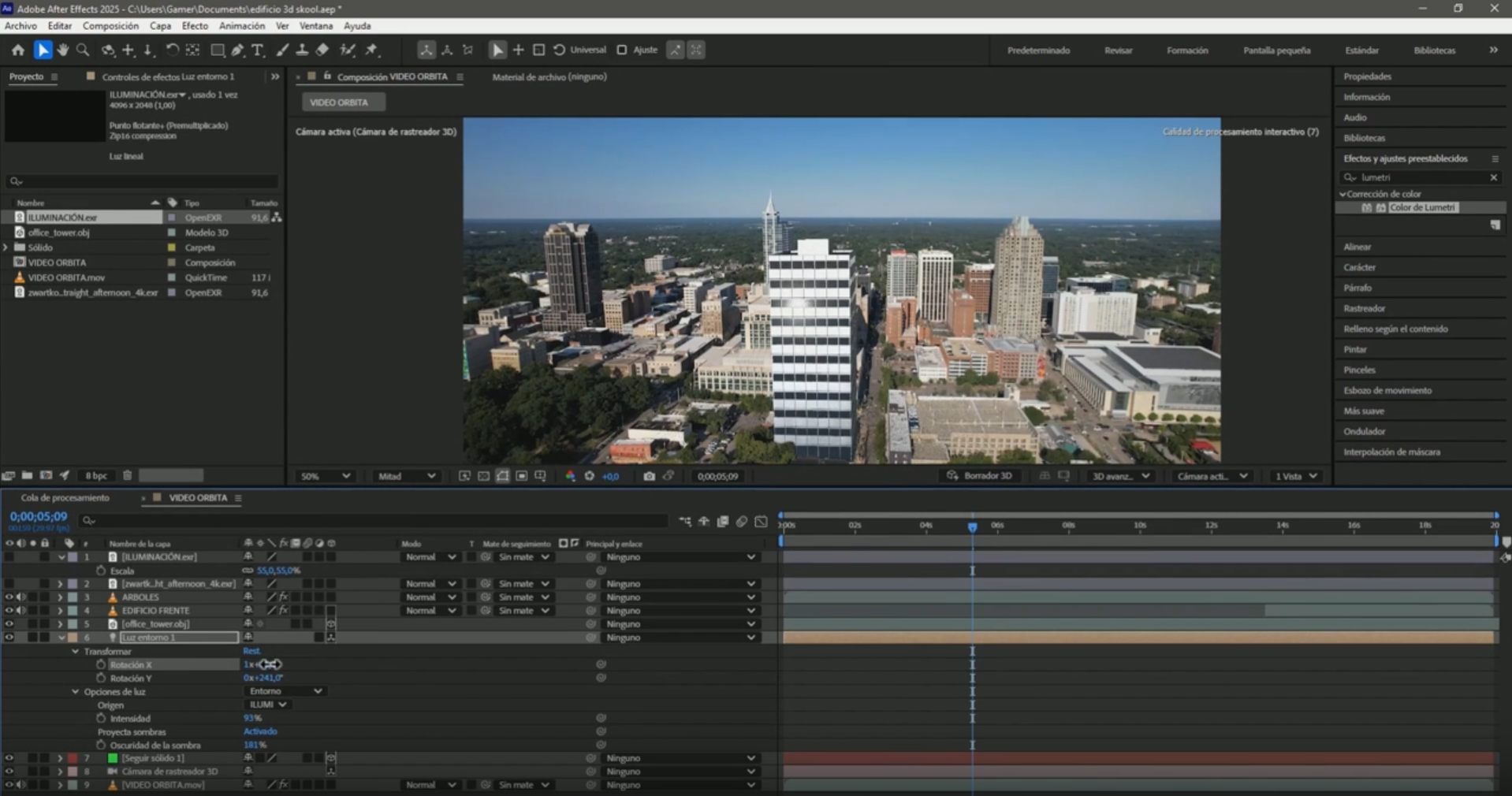
Split the plot layer (Ctrl + Shift + D) and keep a section of about 5 seconds. Apply Track Camera only to that section.
Select points until the perspective matches the plot, right-click > Create Text and Camera. Type the detail (4000 m² in the example), make it white and rotate it to line it up with the camera.
Trim the text layer so it starts where the tracked section starts; before that point the text loses its connection to the plot.
For the shadow, duplicate the text (Ctrl + D), rotate the lower copy, fill it with black and lower its opacity to 40 or 50%.
8. Animate the text's entrance
Select both text layers, press P and add a Position keyframe. Go back in time and move the text up out of view and the shadow back.
Select the keyframes and press F9 to ease them. On the shadow, press T and set the opacity to 0% at the start so it appears when the text starts moving.
Common mistakes
The text separates from the plot before the cut
The track only exists in the tracked section. Trim the text layer so it starts in that section.
The mask moves in jumps
There are too many keyframes in Mocha. Keep only the ones you need to fix large drifts.
Frequently asked questions
Is this a beginner tutorial?
Yes. It covers everything from trimming the footage to each effect setting.
Why duplicate the plot layer?
To animate the plot and the outline separately: that way the plot can rise while the outline stays on the ground.
What is the Vegas effect?
An After Effects effect that draws strokes along a mask or an outline, useful for dashed lines that rotate or draw themselves.
More After Effects tutorials for real estate
- 3D Camera Tracker errors in After Effects: fixes
- Animate measurements and text on a plot of land in After Effects
- Animate measurements of several plots at once in After Effects
- Mark the route of a road in After Effects
- How to build an interactive real estate site plan in real time
All the videos are on the YouTube channel @cristhianitsme.