What a blending mode is
A blending mode decides how a layer mixes with everything below it in the composition. After Effects calls the top layer the source and what is below it the underlying colors. In Normal, the top layer covers what is below; with any other mode, each pixel is calculated by combining both colors.
Try the menu: it is the same list you see in After Effects, with the groups separated by lines. The top layer is a gradient with grays from black to white at the top and colors at the bottom, so you can see what each mode does with each tone. You can also switch it to a text layer.
Where to find blending modes in After Effects
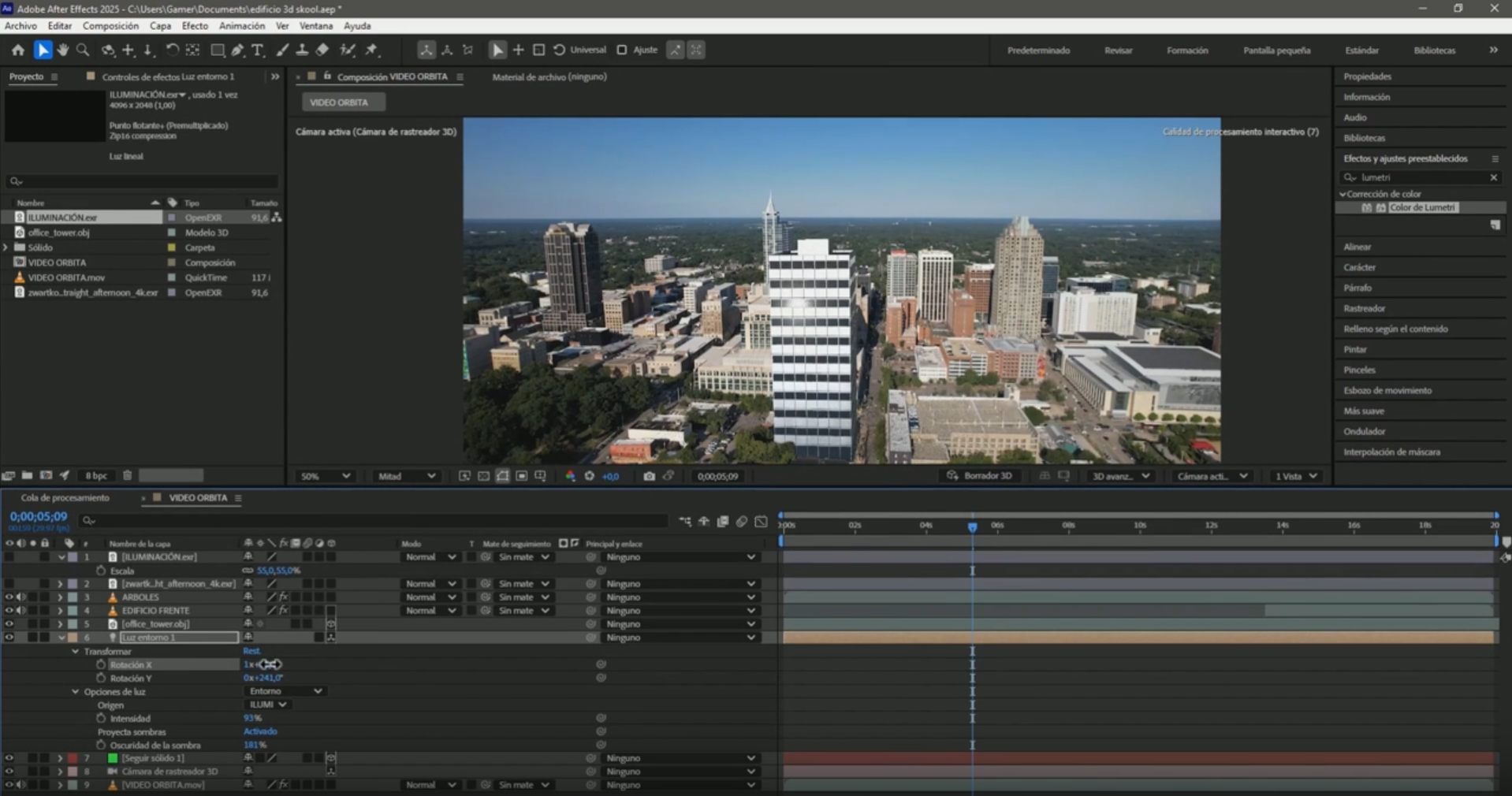
- Mode column: in the timeline, next to the layer name. If you don't see it, press F4 or click Toggle Switches/Modes at the bottom of the panel.
- Layer → Blending Mode menu, with the layer selected.
- Shortcut to test quickly: select the layer and press Shift + = to go to the next mode or Shift + - to go back. You see the result live without opening the menu.
Two things worth knowing: modes can't be animated with keyframes (if you need to switch modes mid-video, split the layer with Ctrl + Shift + D), and opacity still works: at 50% the mode is applied at half strength.
The 8 groups of blending modes
In the menu, the modes appear in groups separated by a line. The group names aren't shown in the interface, but knowing what each group does is what lets you choose without trying all 38.
| Group | Modes | What it does |
|---|---|---|
| Normal | Normal, Dissolve, Dancing Dissolve | Covers what is below; Dissolve does it with dots. |
| Darken | Darken, Multiply, Color Burn (and Classic), Linear Burn, Darker Color | White disappears; the result is never lighter. |
| Lighten | Add, Lighten, Screen, Color Dodge (and Classic), Linear Dodge, Lighter Color | Black disappears; the result is never darker. |
| Contrast | Overlay, Soft Light, Hard Light, Linear Light, Vivid Light, Pin Light, Hard Mix | Darkens below middle gray and lightens above it. |
| Difference | Difference (and Classic), Exclusion, Subtract, Divide | Compares the colors of both layers. |
| Color | Hue, Saturation, Color, Luminosity | Passes only one part of the color. |
| Matte | Stencil Alpha, Stencil Luma, Silhouette Alpha, Silhouette Luma | Uses the layer as a cutout for everything below. |
| Utility | Alpha Add, Luminescent Premul | Technical alpha channel cases. |
1. Normal, Dissolve and Dancing Dissolve
Normal is the default mode: the top layer covers what is below according to its opacity.
Dissolve turns opacity into dots: at 60% opacity, 40% of the pixels become transparent and the rest stay opaque. Dancing Dissolve does the same, but the pattern changes every frame, like TV static.
Real use: almost never in real estate videos. It works for textured transitions or glitch effects. Dissolve doesn't work on 3D layers.
2. Modes that darken: Multiply and friends
These modes make the white of the top layer disappear and never lighten the shot. They are the ones you use to remove a white background.
- Darken: compares channel by channel and keeps the darker value.
- Multiply: multiplies the colors. White changes nothing and black gives black. The most used in the group.
- Color Burn: darkens while increasing contrast; colors end up more saturated than with Multiply. The Classic version exists to open old projects.
- Linear Burn: darkens by lowering brightness; it gives stronger shadows than Multiply.
- Darker Color: like Darken, but compares the whole color instead of each channel, so it doesn't create new colors.
Real estate example: a black-and-white subdivision plan over the drone shot. With Multiply, the plan's white background disappears and only the lot lines remain over the land, without cutting anything out.
3. Modes that lighten: Screen, Add and friends
They are the opposite of the previous group: the black of the top layer disappears and the result is never darker than the shot.
- Add: adds the colors. It is the most intense: light areas burn out to white quickly.
- Lighten: keeps the lighter value of each channel.
- Screen: lightens more softly than Add; it is the inverse of Multiply. The one I use most in the group.
- Color Dodge: lightens while lowering contrast, with very saturated highlights. It also has a Classic version.
- Linear Dodge: lightens by raising brightness; in practice it looks the same as Add.
- Lighter Color: like Lighten, but with the whole color.
Real estate example: sun flares, light leaks, dust or particles filmed over a black background. With Screen or Add, the black background disappears and the light is added to the shot.
4. Contrast modes: Overlay, Soft Light, Linear Light and more
These modes check whether the color is lighter or darker than 50% gray: below it they darken and above it they lighten. Middle gray barely changes the image, which is why they are used to add texture and contrast.
- Overlay: increases contrast based on the shot below, so the light and shadows of the land are kept. The classic for laying a texture or color on top.
- Soft Light: like Overlay, but softer, like lighting with a diffused spotlight.
- Hard Light: depends on the top layer and the effect is harsher, like a direct spotlight.
- Linear Light: combines Linear Burn and Linear Dodge. It is strong: it shows even at low opacity.
- Vivid Light: combines Color Burn and Color Dodge, with a lot of contrast.
- Pin Light: replaces only the colors past middle gray. Rarely used.
- Hard Mix: reduces everything to pure colors (red, green, blue, cyan, magenta, yellow, black or white). It is for graphic effects, not realistic videos.
Real estate example: the text with the lot's area. In my videos I set the text, for example "3400 m²", to Linear Light at 95% opacity: instead of looking pasted on top, it picks up the light and texture of the land. If it is too strong, lower the opacity or try Overlay.
5. Difference, Exclusion, Subtract and Divide
- Difference: subtracts the darker color from the lighter one. With white on top the shot is inverted, with black it doesn't change, and where both layers are the same it turns black.
- Classic Difference: the version for old projects.
- Exclusion: like Difference, but with less contrast.
- Subtract: subtracts the top color from the one below; the image gets darker.
- Divide: divides the color below by the one on top; the image gets lighter. With white on top it doesn't change.
Real use: aligning two layers. Put one shot on top of the other in Difference: whatever matches turns black, so you move the layer until the image is almost black. It is useful for checking a track or aligning a 3D render with the drone photo.
6. Hue, Saturation, Color and Luminosity
These modes split color into three parts (hue, saturation and luminosity) and take only one from the top layer.
- Hue: takes the hue from the top and keeps the saturation and light from below.
- Saturation: takes only the saturation from the top.
- Color: takes the hue and saturation from the top and keeps the light from below. It paints without losing detail.
- Luminosity: takes only the light from the top and keeps the color from below.
Real estate example: painting a lot a different color. Create a solid in the color you want, draw a mask in the shape of the lot and set it to Color: the lot changes color but keeps the texture of the grass or soil.
7. Stencil and Silhouette: the modes that cut out
These four turn the layer into a cutout (matte) for all the layers below it, not just the one directly below.
- Stencil Alpha: shows what is below only where the layer has alpha, for example inside the letters of a text.
- Stencil Luma: the same, but uses brightness: white shows and black hides.
- Silhouette Alpha: the opposite: it punches a hole in the shape of the layer.
- Silhouette Luma: punches the hole based on brightness.
Real estate example: the drone shot inside the project name. Type the name in a text layer above the video and set it to Stencil Alpha. If there are more layers below that you don't want to cut out, precompose the text and the video (Ctrl + Shift + C) so the cutout only affects that precomp.
To cut out a single layer you can also use a Track Matte. Stencil and Silhouette are more practical when the cutout has to affect several layers at once.
8. Alpha Add and Luminescent Premul
- Alpha Add: adds the alpha channels of both layers. It helps when two layers with complementary masks leave a thin line at the edge: with Alpha Add the line disappears.
- Luminescent Premul: keeps highlights that go beyond the alpha channel from being clipped when compositing footage with premultiplied alpha, like some light renders.
In real estate videos you will almost never need them.
The modes I use most in real estate videos
| What I want | Mode | How |
|---|---|---|
| Place a plan or logo with a white background | Multiply | The image above the shot, in Multiply. |
| Add flares, lights or particles with a black background | Screen or Add | The clip on top, in Screen; lower the opacity if it burns out. |
| Text that picks up the texture of the land | Linear Light or Overlay | The text on top, in Linear Light, with opacity between 70 and 95%. |
| Change the color of a lot | Color | A solid with the lot's mask, in Color. |
| Video inside a text | Stencil Alpha | The text above the video, both in a precomp. |
| Check that two layers are aligned | Difference | One on top of the other: black means aligned. |
Common blending mode mistakes
- I change the mode and nothing happens: the mode blends with what is below in the composition. If the layer is alone or there is only transparency below, there is nothing to blend with.
- Stencil Alpha cuts out the whole video: the mode affects all the layers below. Precompose only the layers you want to cut out.
- The mode doesn't show in the main comp: layers inside a precomp only blend within it. Set the mode on the precomp layer or turn on Collapse Transformations.
- Dissolve does nothing: it needs opacity below 100% and doesn't work on 3D layers.
- The result changes from one project to another: some modes give different colors at 8, 16 or 32 bits per channel. Check the 8 bpc button at the bottom of the Project panel.
To combine them with other effects, see the 12 After Effects effects and tricks for real estate videos. And to place the plan over the land, the tutorial to animate a site plan over a plot of land.
Frequently asked questions
What is a blending mode in After Effects?
It is how a layer mixes with the layers below it. You choose it in the Mode column of the timeline or in Layer → Blending Mode.
How do I show the Mode column?
Press F4 with the timeline active or click Toggle Switches/Modes at the bottom of the panel.
How do I remove a white background from an image in After Effects?
Set the image to Multiply: white disappears and dark areas stay. To remove a black background, use Screen.
Can you animate the blending mode?
Not with keyframes. Split the layer with Ctrl + Shift + D and set a different mode on each part.
How many blending modes does After Effects have?
38, split into 8 groups: normal, darken, lighten, contrast, difference, color, matte and utility.
What is the difference between Multiply and Screen?
Multiply darkens and makes white disappear; Screen lightens and makes black disappear.
If you want to learn After Effects from scratch for real estate videos, the free course "From 0 to your first real estate video with After Effects" starts with the basics.