
1. Ease keyframes (F9)
Movement between two keyframes is linear by default: it starts and stops abruptly. Easing makes it accelerate at the start and slow down at the end, and is what separates an animation that looks professional from one that looks mechanical.
Where: select the keyframes and press F9 (Keyframe Assistant → Easy Ease).
When to use it: almost always: when drawing an outline, raising a plot or bringing text in.
2. Trim Paths to draw a line
Trim Paths makes a line draw itself. It is the basis for marking routes, streets and boundaries.
Where: in a shape layer, Contents → Add → Trim Paths.
Values I use: End from 0% to 100% in one second to draw the line; then Start from 0% to 100% to make it disappear. Width around 15 and motion blur enabled.
Full tutorial: mark the route of a road.
3. A moving dashed line
A moving dashed line, like marching ants, to show the route to the project.
Where: Contents → Stroke 1 → Dashes, and animate Offset.
Values I use: Offset from 0 to −300. If the dashes move backwards, change the sign.
4. Animated stroke over the land mask
Draws a lot's outline from its mask, as if someone were tracing it over the shot.
Where: Effect → Generate → Stroke, on the layer with the mask.
Values I use: width 3; End from 0% to 100% in one second, starting one second after the beginning so the drone flies for a moment first.
Full tutorial: animate measurements and text over a plot of land.
5. Color fill that appears and disappears
Paints the lot area with a semitransparent color so it stands out from the rest.
Where: Effect → Generate → Fill, selecting the land mask.
Values I use: opacity from 0% to 20% when the outline finishes and back to 0% a few seconds later.
6. A rotating, glowing outline with Vegas
Dashes travel around the land's edge. With Glow on top, the lot looks illuminated.
Where: apply Vegas to a copy of the masked layer and select Mask under Stroke.
Values I use: Segments 85, Length 0.5, Rotation from 0 to 90 between the first and last second, Transparent blending mode and Glow effect.
Full tutorial: animate the outline of a plot of land.
7. A mask tracked with Mocha
Mocha follows the land's shape frame by frame even when the camera moves. That mask is used for the outline, fill and floating land.
Where: Animation → Track in Boris FX Mocha. Draw the corners with the pen tool, track forward and backward, and on returning create the mask from Matte → Create AE Mask.
Trick: correct only the frames where the shape drifts. With too many keyframes, the edges move in jumps.
8. Text attached to the ground with the 3D Camera Tracker
Places the area, price or road name on the ground, and the text moves with the drone shot.
Where: right-click the video → Track Camera. Choose 3 to 5 points on the land, right-click → Create Text and Camera.
Trick: move the text only with the gizmo arrows. If you need to scale the shot, precompose and scale the precomp, never the tracked layer.
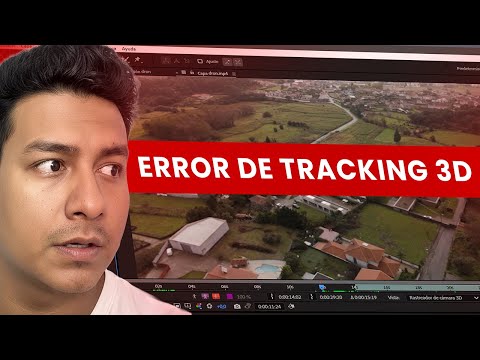
If an error appears, review the 3D Camera Tracker errors and how to fix them.
9. Text with a shadow
A shadow separates the text from the ground and makes it readable over any shot.
Where: duplicate the text with Ctrl + D, fill the lower copy with black and rotate it to fall as a shadow.
Values I use: shadow opacity between 40 and 50%. For the entrance, animate the position of the text and shadow and ease with F9.
10. Floating land
The lot lifts off the ground and comes back down. It draws attention to a specific plot in a few seconds.
Where: duplicate the layer; keep the masked one on top and the full shot underneath. Animate the land's Position upward.
Trick: to return it to exactly the same place, copy the first keyframe with Ctrl + C and paste it later.
Full tutorial: make a plot of land float with Mocha.
11. Darken the background to highlight the lot
A black solid between the land and the full shot reduces attention on everything else.
Where: right-click → New → Solid, between the two layers.
Values I use: opacity from 0% to 50 or 60% in half a second, starting at second one.
12. The subdivision plan over the land
Shows how the lots are distributed over the real land.
Where: import the plan as a PNG with a transparent background and adjust its corners to the land boundaries with Corner Pin. If the camera moves, anchor it with tracking.
Full tutorial: animate a site plan over a plot of land.
How to combine them in one video
An order that works for most land shots:
- Mocha to isolate the lot.
- Dark background to highlight it.
- Outline with Stroke or Vegas, eased with F9.
- Fill that appears when the outline finishes.
- Text with a shadow attached to the ground with the 3D Camera Tracker.
- Access route with Trim Paths, if the shot shows the road.
To choose based on what you want to show, review how to mark a plot of land in a drone video. And if you are going to film, read how to film with a drone so the tracker works.
Frequently asked questions
Do I need plugins for these effects?
No. They all come with After Effects, including Mocha AE.
What is F9 in After Effects?
The Easy Ease keyframe shortcut: it makes the animation start and stop slowly instead of moving linearly.
What is Trim Paths for?
To animate how much of a line is visible: End draws the line and Start makes it disappear. It is used for routes, streets and boundaries.
What is the difference between Mocha and the 3D Camera Tracker?
Mocha follows a flat shape, like the lot, and is used for masks. The 3D Camera Tracker calculates camera movement and is used to attach text and solids to the ground.
Which effect is used most in land videos?
The lot's animated outline with its area on top: it combines a Mocha mask, a stroke and text with the 3D Camera Tracker.
If you want to learn these effects from scratch, the free course "From 0 to your first real estate video with After Effects" starts with the basics.