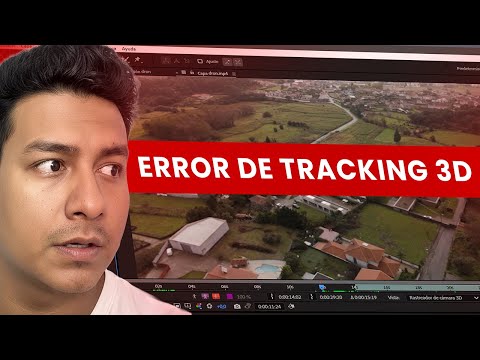
The video runs 1 minute. Below is the same process written out step by step, so you can follow along with After Effects open without pausing every few seconds.
What you'll achieve
- Fit the site plan to the perspective of the land.
- Make the plan appear over the shot.
What you need
- Adobe After Effects.
- A drone shot of the land and the subdivision plan as an image or PDF.
Step by step
1. Prepare the plan
Export the plan as an image with a transparent background (PNG) or with a background you can remove, and import it into the composition.

2. Fit it to the perspective
Place the plan over the land and adjust its corners so they match the boundaries of the land in the shot (for example with the Corner Pin effect). If the camera moves, anchor it with a track.

3. Animate its appearance
Animate the opacity or a mask so the plan gradually appears over the land.

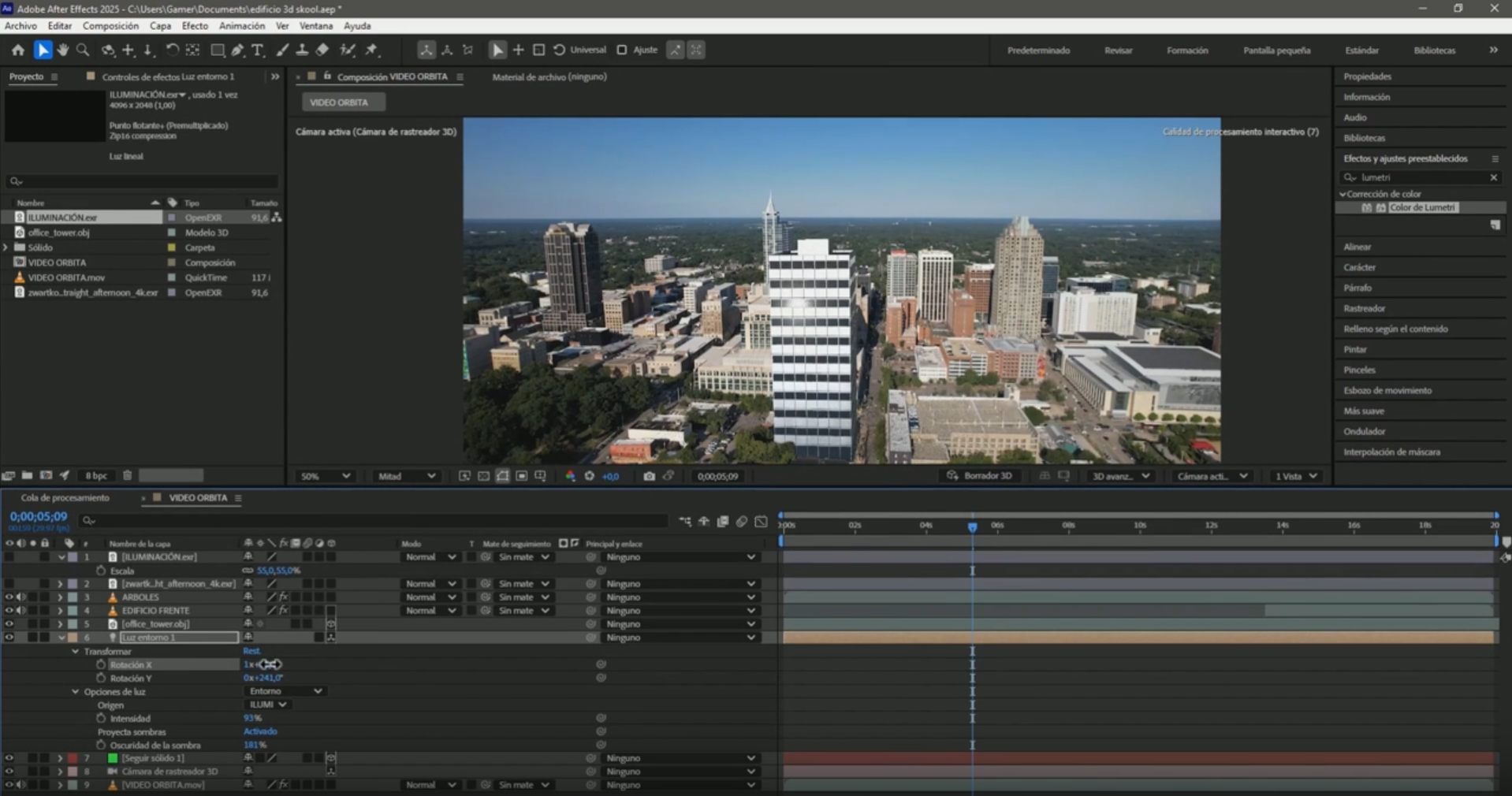
Frequently asked questions
Can I use the plan as a PDF?
Yes, After Effects imports PDFs, although it's usually easier to export it first as a PNG with a transparent background.
What if I want an interactive plan on the web?
That's a different thing: the blog has a tutorial on building an interactive plan that updates from Google Sheets.
More After Effects tutorials for real estate
- 3D Camera Tracker errors in After Effects: fixes
- Animate measurements and text on a plot of land in After Effects
- Animate the outline of a plot of land in After Effects
- Animate measurements of several plots at once in After Effects
- How to build an interactive real estate site plan in real time
All the videos are on the YouTube channel @cristhianitsme.