The video runs 6 minutes. Below is the same content written out, so you can keep it handy on site before you fly.
What you'll achieve
- Know which shots to film on the plot and in what order, without wasting battery time.
- Deliver footage the editor can use to mark the perimeter, the streets and nearby points.
- Avoid shots that end up useless because of sudden camera movements.
What you need
- A drone with charged batteries and permission to fly in the area.
- The exact location of the plot and its boundaries.
Step by step
1. Shot 1: top-down rise over the plot
Place the drone right above the plot, start recording and raise it to the maximum height the equipment or the area allows, without moving it sideways.
It doesn't matter if it lasts one or two minutes: it gets trimmed in editing. What matters is that the shot is as steady as possible, with no sudden camera changes.
It is used to mark the perimeter, the streets around the property and the nearby reference points.
2. Shot 2: vertical descent
When you reach the top, stop the video and start a new one going down. Descend straight, without moving the camera, to the minimum safe height.
Watch for cables and trees on the way down.
3. Shot 3: pull-back at a 45° angle
Stand in front of the property at a reasonable height and pull back with the camera at about 45° to reveal what is behind it.
The viewer sees where the plot is in relation to its surroundings: the city, the neighborhoods and whatever matters to the potential buyer.
4. Shot 4: descent from above toward the property
When you finish pulling back, cut and record again, this time coming down from above toward the property.
Like the previous ones, it can last one or two minutes: it gets adjusted in editing.
5. Shot 5: static shot
Hold the drone still at a height where the streets and part of the area are visible, and record without moving it.
The goal is for cars and people to move while the property stays fixed. That way, in editing, you can for example remove a house from the plot or add a 3D model.
Extra: if you leave the drone still recording for 6 or 7 minutes, or make a hyperlapse from that angle, you get a very good additional scene.
6. Shot 6: wide orbit
Go up to the maximum height, keep the property in the center of the screen and circle around it, showing the whole surroundings.
It can last three or four minutes. Keep it steady: move the drone to one side with one stick and the camera to the other with the other stick, so the property doesn't leave the center.
7. Shot 7: close orbit
Repeat the orbit, but much closer to the property and showing less of the surroundings.
This shot also works to mark the perimeter or point out what is next to the plot.
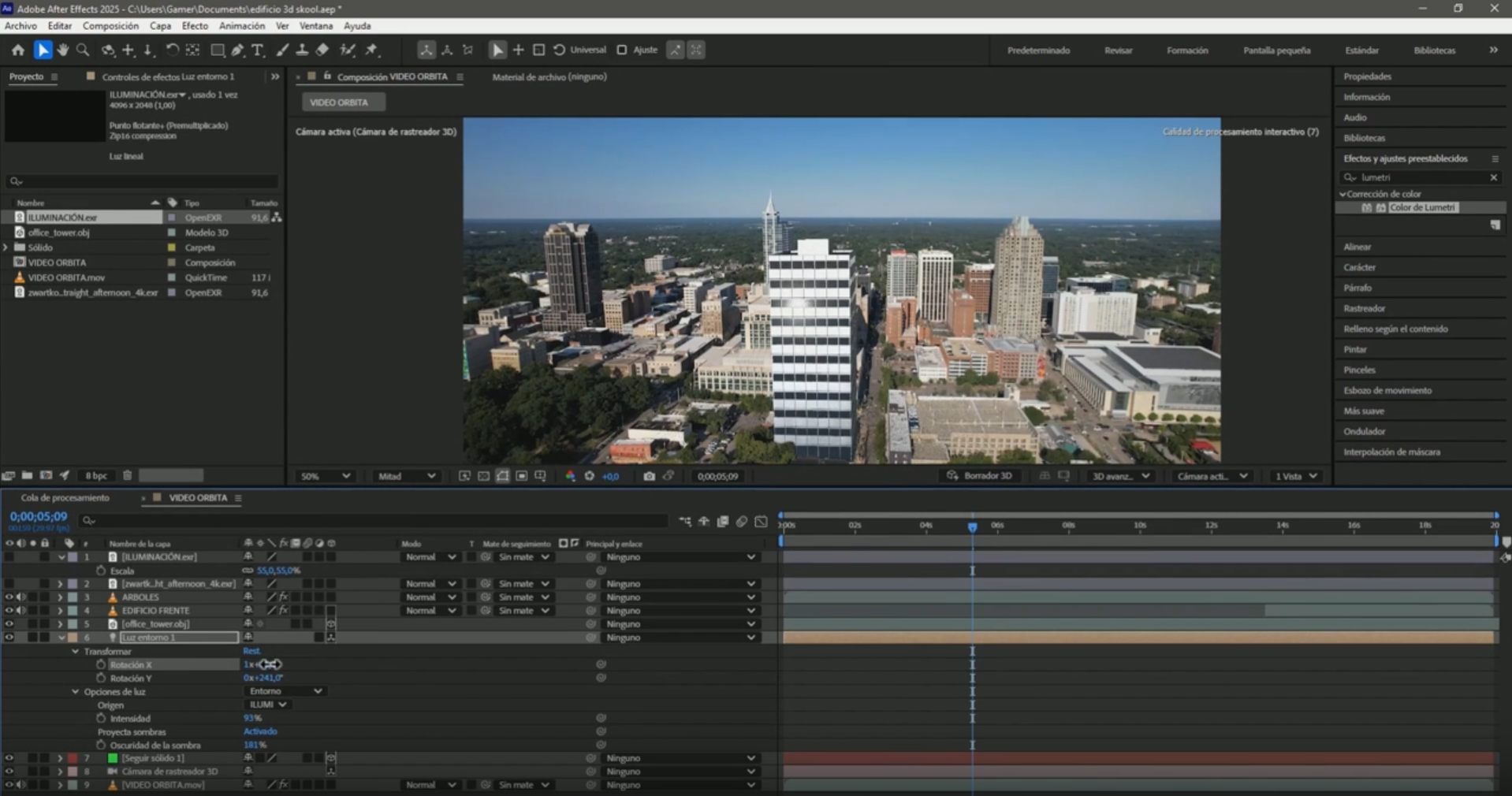
Tip: To mark the plot on these shots, follow the guide to marking a plot of land in a drone video. If you are going to use the 3D Camera Tracker, also check how to film so the tracking works.
Common mistakes
Filming 10 minutes to use 2
With these 7 shots you have what you need. Anything extra only takes the editor's time.
Moving the camera abruptly
A shot with sudden turns or angle changes usually ends up useless or much harder to edit and track.
Losing the property from the center in the orbit
If the plot leaves the center, the orbit doesn't show it. Practice combining the two sticks.
Additional shots
Besides the 7 basic shots, film whatever helps locate the plot: monuments, main streets, universities or nearby shopping centers.
Frequently asked questions
Which drone shots does a real estate video of a plot of land need?
Seven: top-down rise, vertical descent, 45° pull-back, descent from above, static shot, wide orbit and close orbit.
How long should each drone shot last?
One to two minutes for the rises and descents, and three or four minutes for the wide orbit. They get trimmed in editing; what matters is that they are steady.
What is the top-down shot of a plot of land for?
To mark the perimeter, the streets around it and the nearby reference points in editing.
Why film a static shot with the drone?
Because with the property still you can edit the plot, for example remove a house or add a 3D model, while the rest of the scene moves.
More After Effects tutorials for real estate
- How much to charge for filming a plot with a drone (Ecuador)
- Animate the outline of a plot of land in After Effects
- Animate measurements and text on a plot of land in After Effects
- 3D Camera Tracker errors in After Effects: fixes
- How to build an interactive real estate site plan in real time
All the videos are on the YouTube channel @cristhianitsme.